Pixel-izer Pro Image to Pixel Art Converter
A downloadable pixel generator for Windows, macOS, and Linux
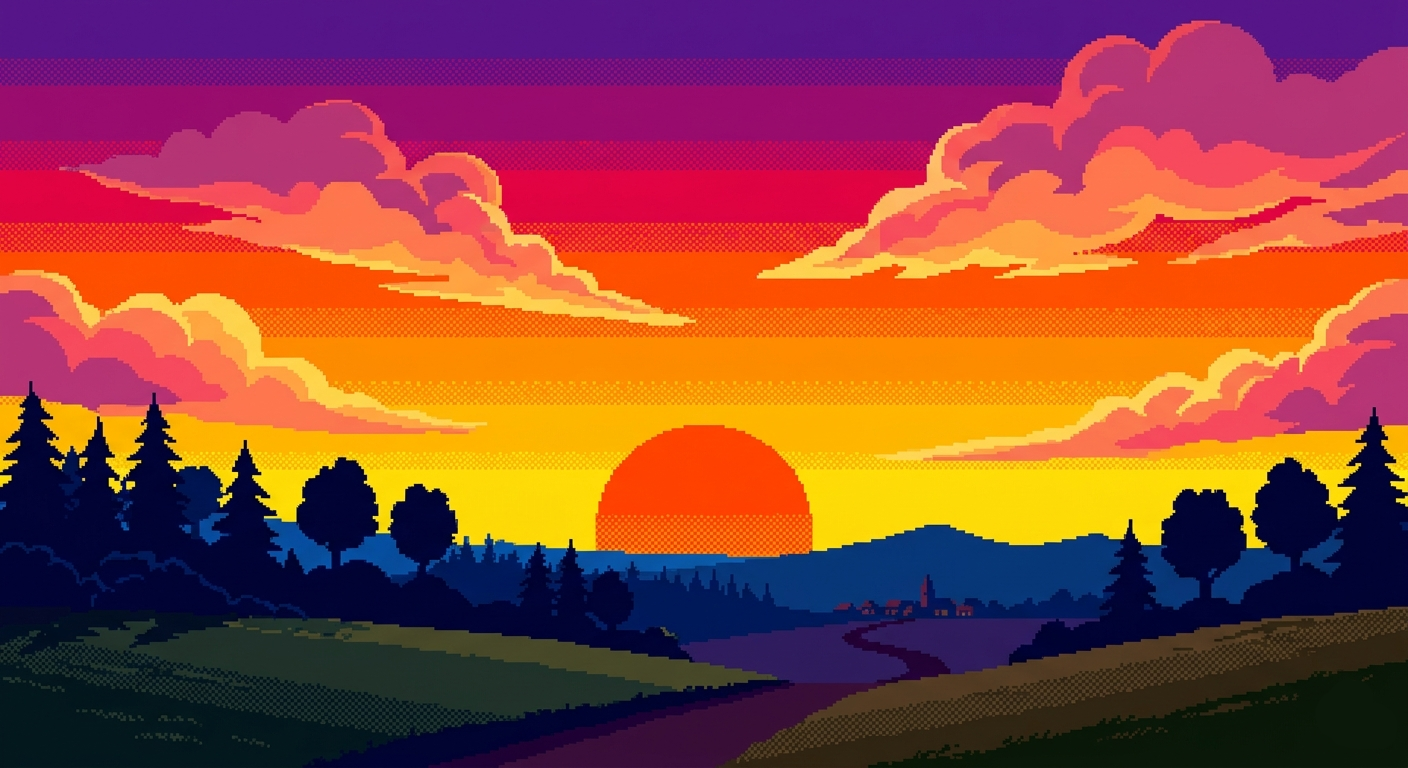
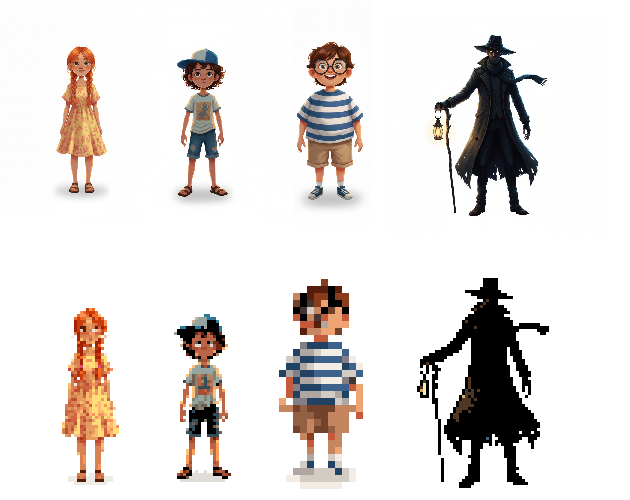
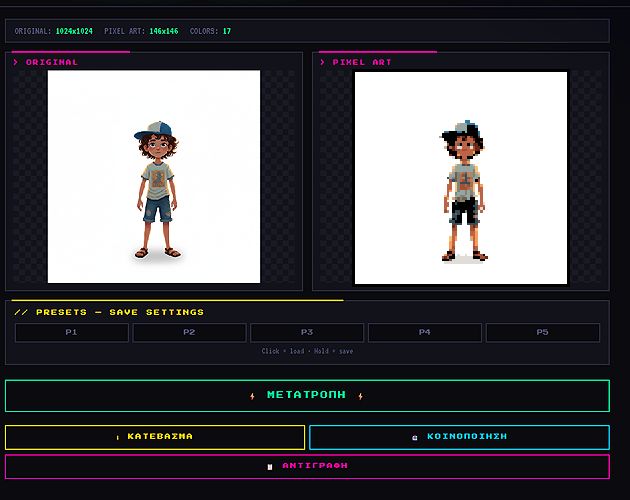
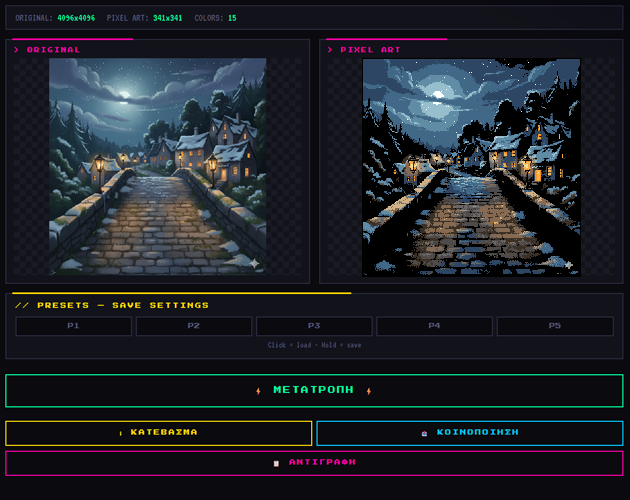
PIXEL·IZER is a browser-based image-to-pixel-art conversion tool that runs entirely on your device — no uploads to servers, no subscriptions, no internet required after the initial load. It takes any photograph, illustration, or sprite sheet and transforms it into clean, game-ready pixel art through a multi-stage processing pipeline with fine-grained controls at every step.
What Makes It Different
Most online pixel art converters are simple resize tools with a palette filter. PIXEL·IZER treats the conversion as a proper pipeline: each stage builds on the previous one, the alpha channel is protected at every step, color matching happens in perceptual space rather than raw RGB, and features like sprite detection and style cloning push it closer to what a skilled pixel artist would do manually — just much faster.
Here are all the sliders and controls in the application:
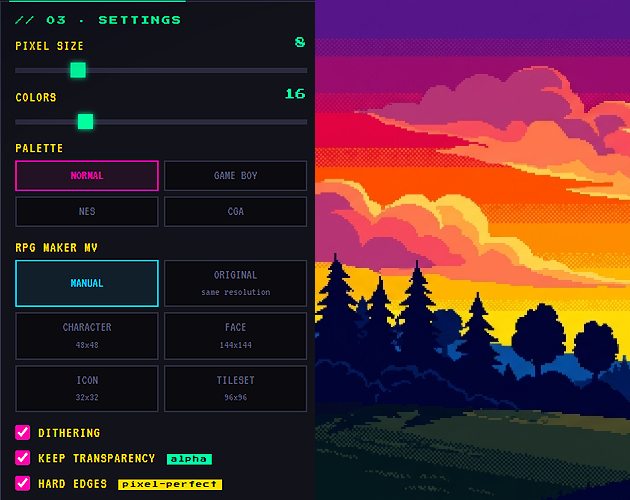
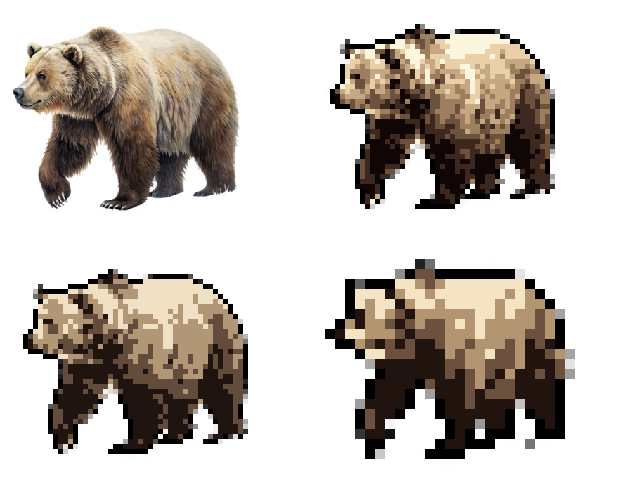
- Pixel Size (2–32) — Determines how many pixels of the original image are compressed into a single pixel art block. Low value = more detailed result, high value = more "blocky" and chunky appearance.
- Colors (2–64) — How many distinct colors the final palette will contain. Fewer colors produce a more retro aesthetic, more colors preserve richer detail and gradients.
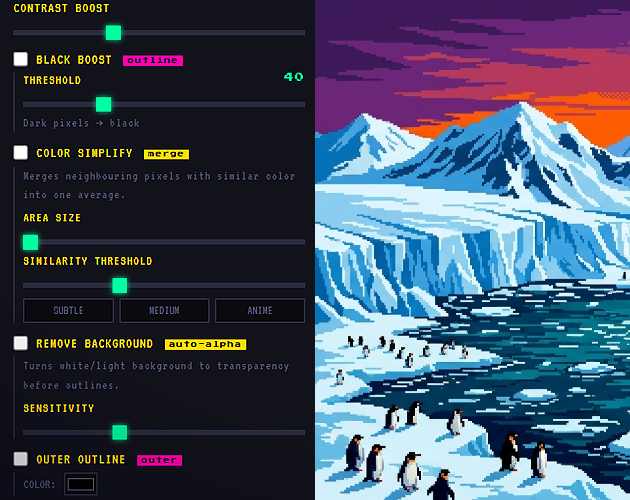
- Contrast Boost (-50 to +100) — Increases or decreases the contrast of the image before conversion. Higher values make region boundaries more distinct and edges cleaner in the final result.
- Black Boost Threshold (10–120) — Defines how dark a pixel needs to be before it gets pushed to pure black. Low value = only the very darkest pixels are affected, high value = medium-dark pixels also become black, naturally producing outlines without a separate outline pass.
- Color Simplify — Area Size (2–5px) — The radius of the neighbourhood within which the tool searches for similar colors to merge. 2 = very subtle simplification, 5 = very flat, anime-style result with large uniform color regions.
- Color Simplify — Similarity Threshold (5–80) — How different two colors can be while still being considered "similar enough" to merge. Low value = only nearly identical colors are merged, high value = noticeably different colors are also grouped together.
- Remove Background — Sensitivity (5–80) — How light a pixel needs to be for the tool to consider it background. Low value = only pure white is removed, high value = off-white, light grey, and pale-colored backgrounds are also removed.
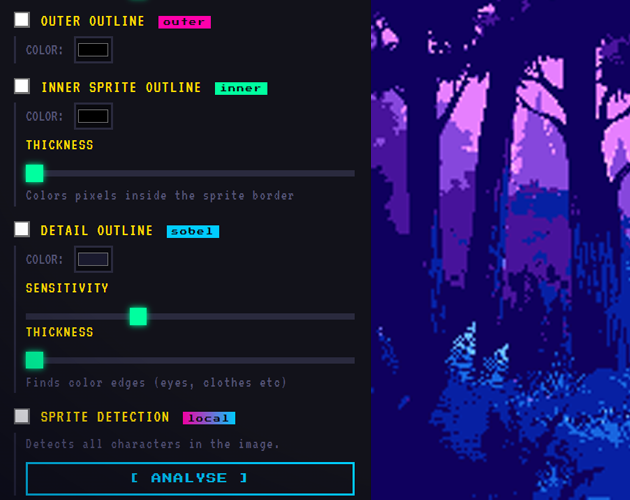
- Inner Sprite Outline — Thickness (1–4px) — The thickness in pixels of the inner outline drawn just inside the sprite's border. 1 = a thin single-pixel ring, 4 = a bold inner stroke that visually pushes the sprite edges inward.
- Detail Outline — Sensitivity (5–80) — How strong a color change needs to be before the Sobel edge detector registers it as an edge. Low value = even subtle color shifts are detected, high value = only strong boundaries like eyes, hair lines, and clothing seams are detected.
- Detail Outline — Thickness (1–3px) — The thickness of the lines drawn by the Sobel algorithm along detected edges. 1 = fine lines, 3 = bold outlines that emphasize facial features and clothing details.
How It Works
The conversion runs through a precise sequence of steps, each of which can be toggled and tuned independently:
1. Pre-processing — Before any downscaling happens, the tool can boost contrast to sharpen the distinction between regions, and optionally run color merging to flatten similar-colored areas into a single average tone. This happens at full source resolution, so the results are clean and controlled.
2. Downscaling — The image is scaled down to the target pixel dimensions using strict nearest-neighbor interpolation. No smoothing, no anti-aliasing. Every output pixel maps to a discrete block of the source.
3. Color Quantization — The tool builds a color palette from the image using k-means++ clustering in the perceptually accurate CIE LAB color space (not RGB), which means colors are matched the way human vision perceives them, not just mathematically. With Hard Edges mode on, every pixel is snapped to its closest palette color with zero blending. With it off, Floyd-Steinberg dithering distributes color errors across neighbouring pixels for a more gradual appearance.
4. Post-processing — After quantization, several optional effects can be applied in sequence: black boost (pushing dark pixels to pure black to create natural outlines), background removal (flood-fill from image edges to turn white/light backgrounds into transparency), inner sprite outline (a BFS-based algorithm that paints a colored ring inside the sprite's border), inner detail outline (Sobel edge detection that finds color boundaries like eyes and clothing), and outer outline (painting a colored ring just outside the sprite into transparent space).
Key Features
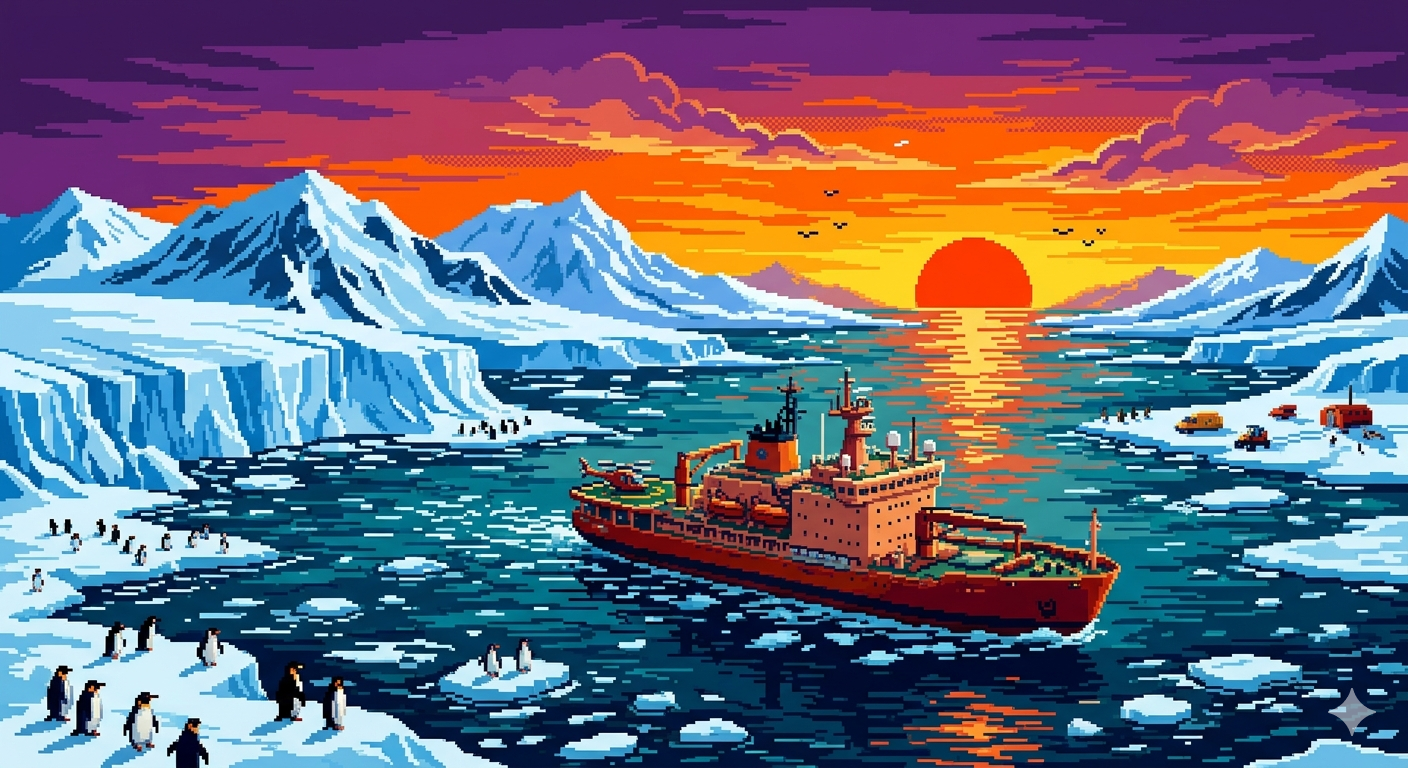
Style Reference — Upload a second image as a reference. The tool analyses its pixel block size (by detecting color run lengths) and extracts its dominant palette via k-means. Hit "Apply Style" and the conversion will use that palette and pixel scale — effectively copying the visual style of any pixel art you admire.
Color Simplify (Merge) — Instead of blurring, this groups neighbouring pixels by color similarity in LAB space and replaces them with their average. You control the neighbourhood radius (2–5px) and the similarity threshold. The key distinction from blur is that it respects the original alpha boundary completely — colors merge only among opaque pixels, so sprite edges stay razor-sharp.
Background Removal — A flood-fill algorithm that starts from all four edges of the image and removes connected light/white regions. Because it floods from outside inward, it never removes white areas that are part of the sprite itself — only the background.
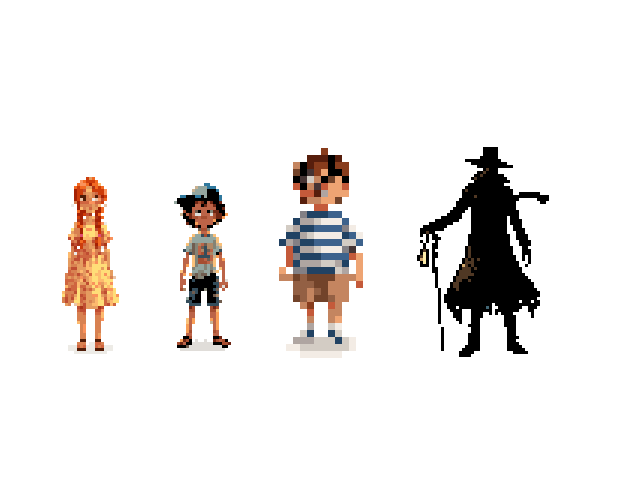
Sprite / Face Detection — A pure-canvas skin-tone detector using YCbCr color space analysis. It finds all skin-tone connected components in the image, computes their bounding boxes, and estimates the positions of eyes and mouth within each. All detected high-priority regions receive extra hard LAB snapping during conversion to ensure facial features come out sharp and readable at small pixel sizes. This works on character sheets with multiple figures simultaneously.
RPG Maker MV Presets — One-click output sizing for the exact dimensions expected by RPG Maker MV: Character sprites (48×48), Face portraits (144×144), Icons (32×32), Tilesets (96×96), and SV Actor battle sheets (576×384). There is also an "Original" mode that applies the full pixel art pipeline at the source image's native resolution.
Preset Slots — Five saveable configuration slots that store every setting in the browser's localStorage. A short click loads a saved preset; a long press (700ms) saves the current configuration. Each slot shows an inline rename field — no popup dialogs.
Multi-language UI — The entire interface switches between Greek, English, Spanish, and French instantly without reloading.
Mobile-friendly export — On mobile devices, the result image is displayed large for long-press saving. A native Share Sheet button is available on iOS and Android. A clipboard copy button lets you paste the image directly into other apps. On desktop, a standard PNG download link is provided.
Purchase
In order to download this pixel generator you must purchase it at or above the minimum price of $3 USD. You will get access to the following files:
Development log
- Pixel-izer Pro is Live — Here’s What It Can Do99 days ago
Comments
Log in with itch.io to leave a comment.
Can't help but saying that not only i used it, but i am already making characters that will help me with my work and some projects that i make. The most useful and easiest tool in the market ! nice job!
Wow, thank you so much for the kind words! 🙏
Hearing that you’re already using it for your own characters and projects honestly means a lot to me. I spent a huge amount of time trying to make it as useful and easy to use as possible, so feedback like this really motivates me to keep improving it even more. Thank you again for the support!
Fast, beautiful, and works like a charm! I love ittttt!!!
Thank you so much! That really means a lot to me 🙏 I’m still improving and adding new things, so hearing feedback like this keeps me motivated!
I've tried a ton of software for this sort of thing over the past few months, including stuff only found on obscure Japanese-only stores, and I can already tell from my testing that this is one of the top tools out there for converting images to pixel art. The palette quantization in particular does an incredible job.
Thank you so much for the detailed feedback — that really means a lot! 🙏
I’m especially happy to hear you liked the palette quantization, I’ve put a lot of effort into making it as accurate and useful as possible.
It’s awesome to know it stands out even compared to other tools you’ve tried. I’ll keep improving it and adding new features! 🚀 Thanks again for the support!
Oooh, new features? Honestly, the only thing that feels missing to me is some kind of a batch convert option, because the style reference and color simplify options could make this the best possible tool for converting a series of video frames.
That’s an awesome suggestion — and honestly, you’re absolutely right.
A batch convert feature is something I’ve been thinking about, especially for use cases like animation frames or video-to-pixel workflows. It would definitely take the tool to the next level.
I’m really glad you pointed it out — I’ll seriously consider adding it in a future update 👀
Thanks again for the thoughtful feedback!
Great job! pixel art is my favorite ! can' t wait to use it and see more of you ! Keep up the good stuff !
Thank you so much! I really appreciate your kind words 🙏 I’m glad you like the pixel art style — I’m excited to see what you create with it!
More content and tools are definitely on the way, so stay tuned 👀✨ Thanks again for the support!